
MainBridge App Guide
Learn how to use the MainBridge app to manage your property, review invoices, schedule appointments, and stay connected with MRS Coating — all from your phone.
Learn how to use the MainBridge app to manage your property, review invoices, schedule appointments, and stay connected with MRS Coating — all from your phone.
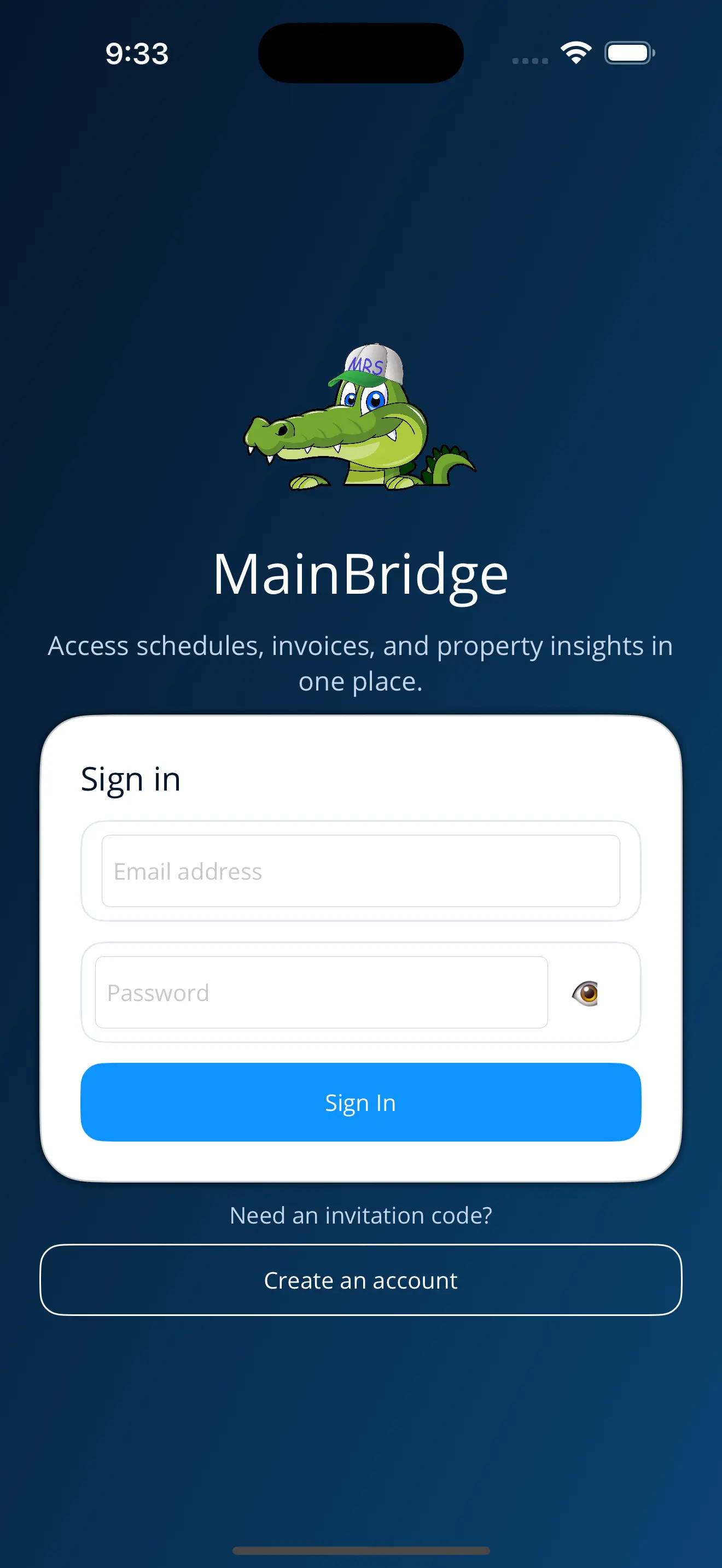
Once you have your account set up, this is the first screen you'll see when opening the MainBridge app. Follow these steps to sign in:
Type the email address you used when creating your account in the "Email address" field.
Type your password. You can tap the eye icon on the right to show or hide your password.
Press the blue "Sign In" button to access your dashboard.
Don't have an account yet? Tap "Create an account" at the bottom of the screen to get started. You'll need an invitation code provided by MRS Coating via email.
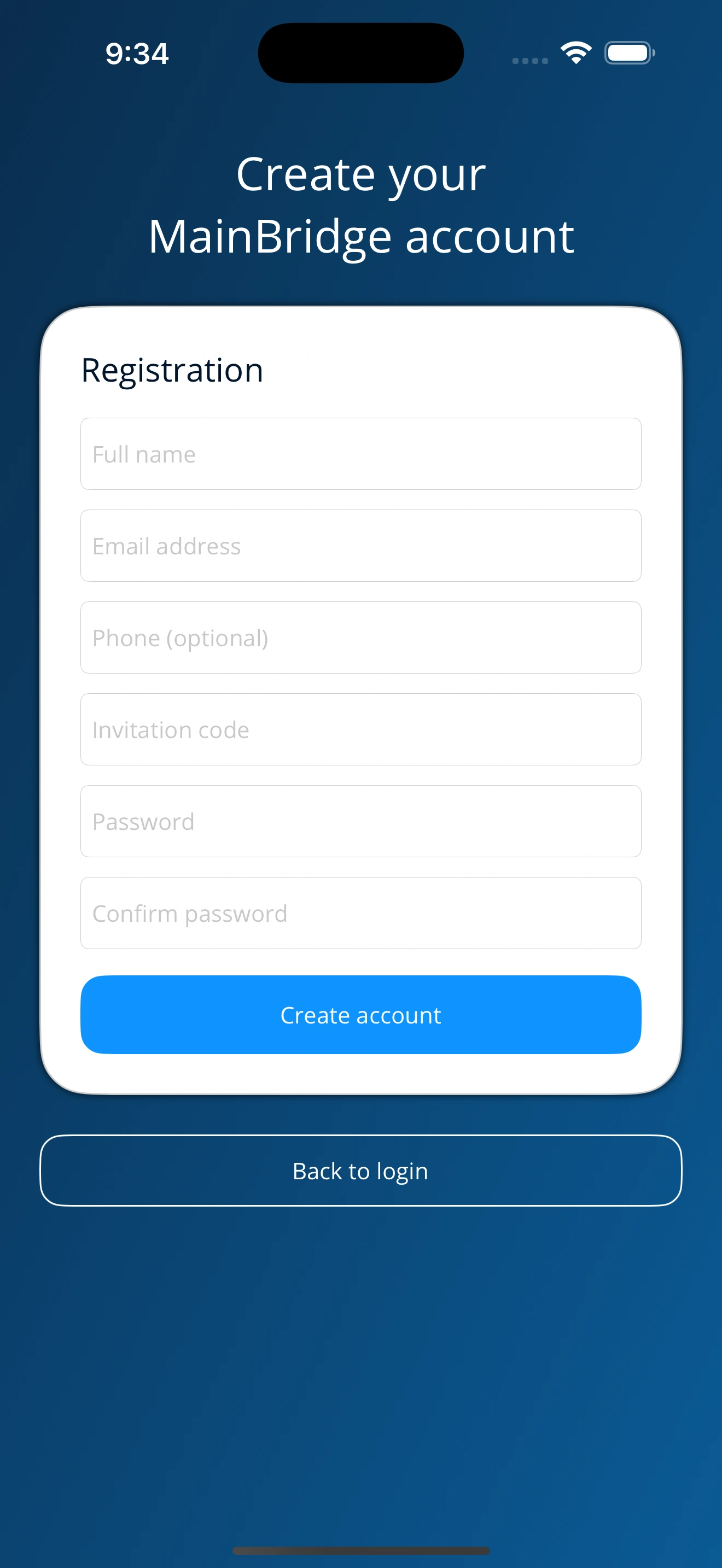
To create your MainBridge account, you'll need an invitation code that MRS Coating will send you via email. Follow these steps:
Type your full name as you'd like it to appear in the app.
This will be your login email. Use the same email where you received the invitation.
Add your phone number if you'd like us to reach you by phone.
Paste the unique invitation code that MRS Coating sent to your email. This code is required to create your account and links your property to the app.
Choose a secure password and confirm it by typing it again in the second field.
Press the blue button to complete your registration. You'll be redirected to the login screen.
An email verification link will be sent to your address. **It is important to click this link to activate your account** before you can log in. If you don't receive the email within 5 minutes, please check your **spam folder, junk email, or junk mail** folder.
The Invitation Code is unique to your property and will be provided by MRS Coating via email. If you haven't received yours yet, please contact us and we'll send it right away.
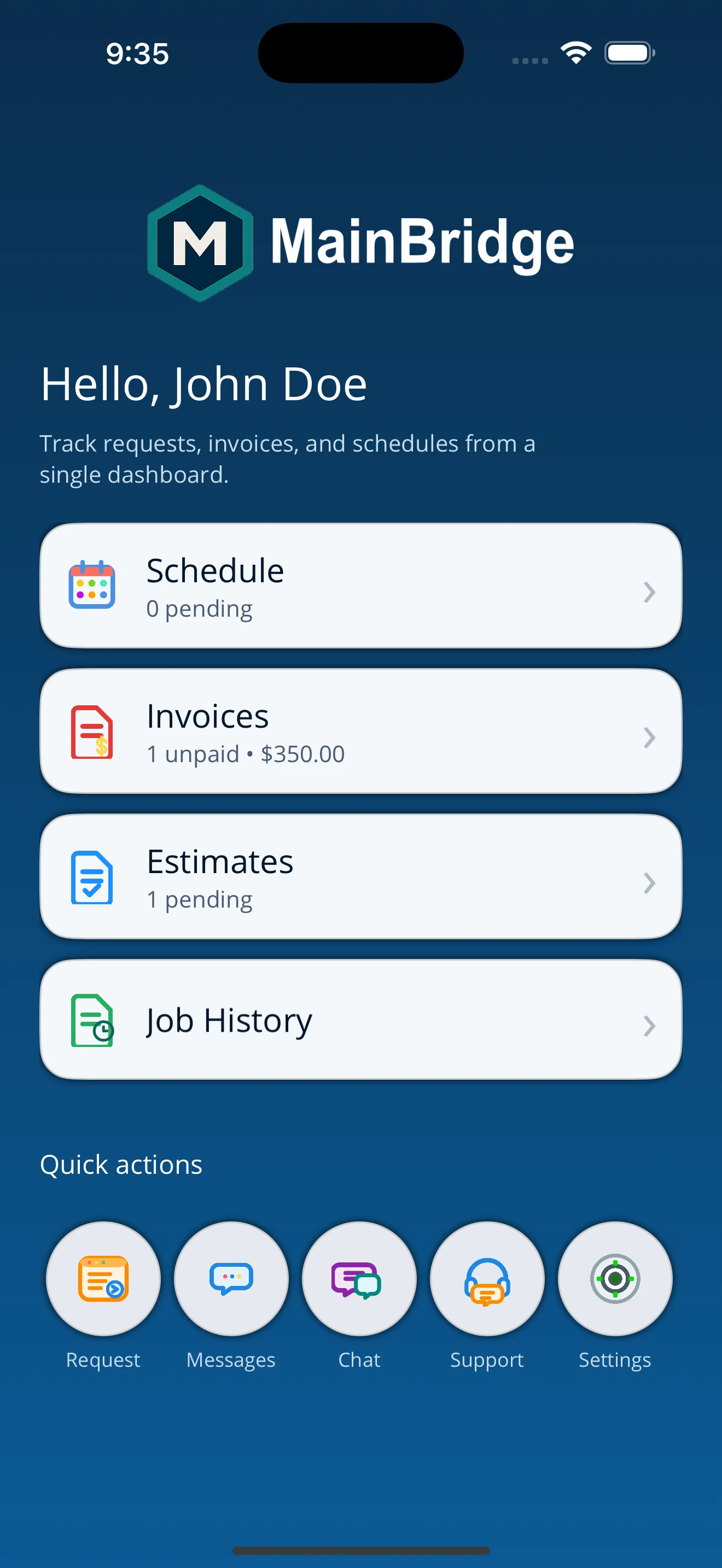
The Home screen gives you a quick overview of your property's current status and fast access to key features.
View and confirm upcoming Work Orders and service dates.
Track your unpaid invoices, view amounts, and manage your billing history.
Check the status of pending estimates for new services or repairs.
Access records of all previous jobs completed at your property.
Use the bottom icons to quickly send a service **Request**, check **Messages**, start a **Chat** with support, or adjust your **Settings**.
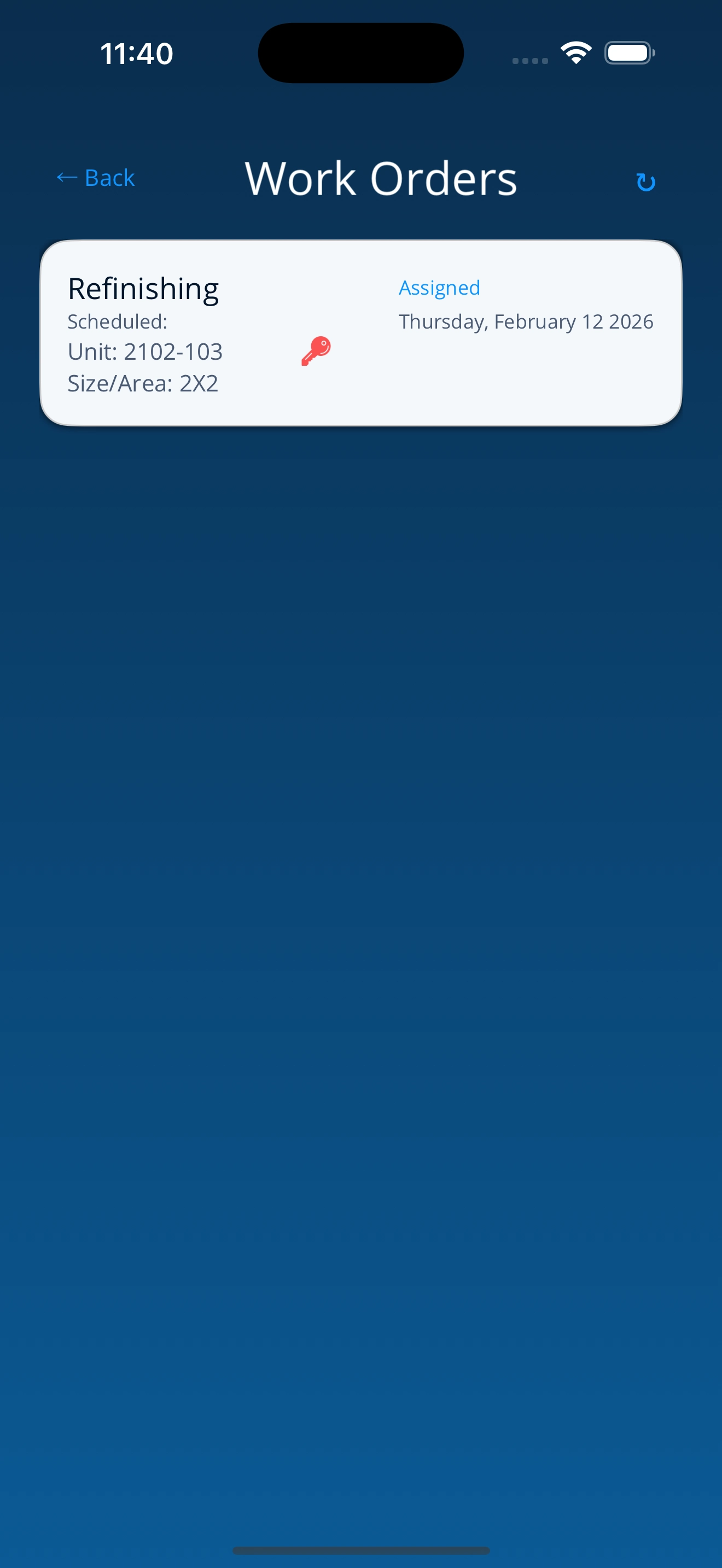
The Work Orders section (found in the Schedule menu) lets you manage every detail of your property's service history and upcoming jobs.
View all pending and scheduled jobs. A red key icon indicates that the unit is currently occupied.
Select any Work Order to see its full details, including scheduled date and status.
Add specific instructions for our team via the Comments icon.
Add additional photos of the area to be serviced at any time.
Assign a Purchase Order or WTN number to the job for easy invoicing.
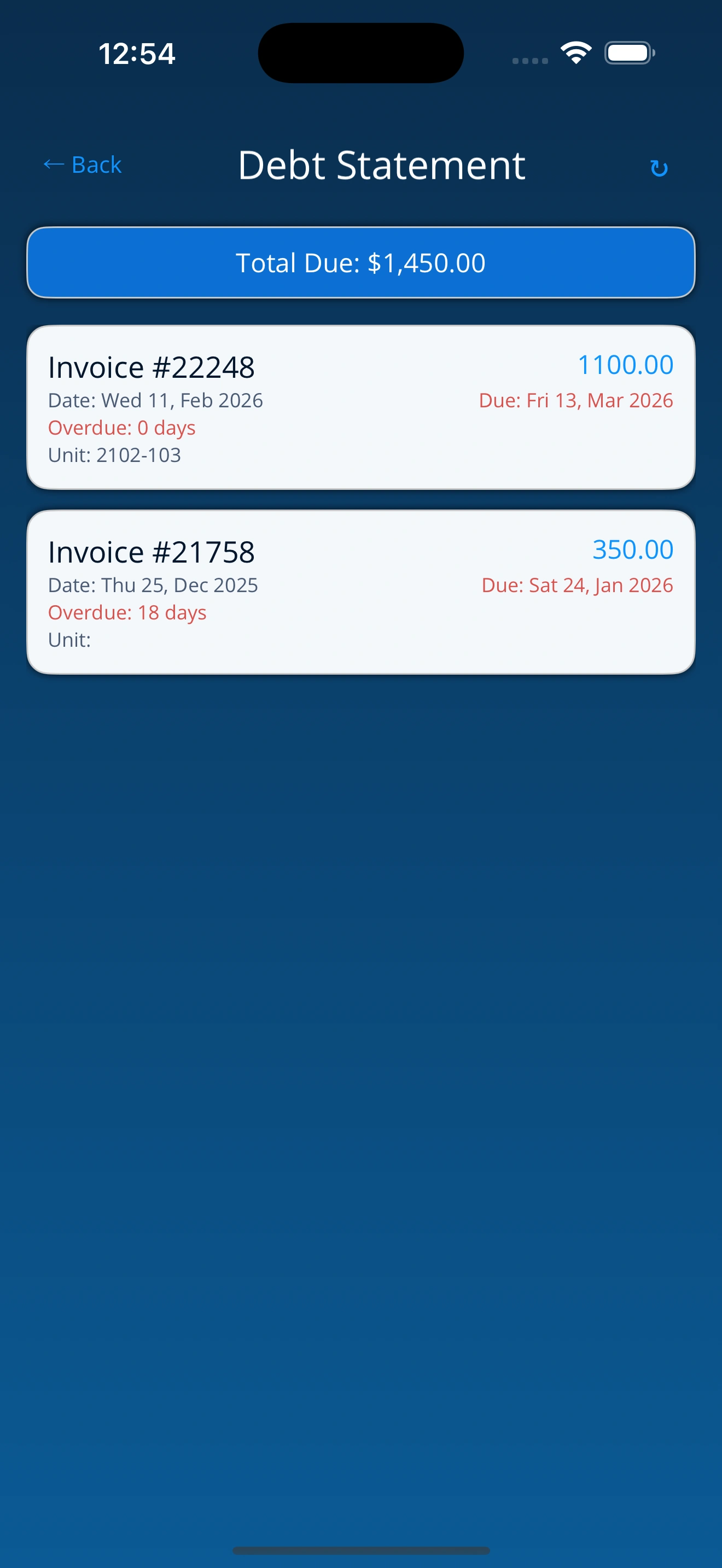
Track your property's financial status and manage your payments easily in the Invoices section.
View all your pending and past invoices. **Selecting an invoice from the list will open its full details.**
See the complete breakdown of any invoice, including specific service items, total amounts, and payment status.
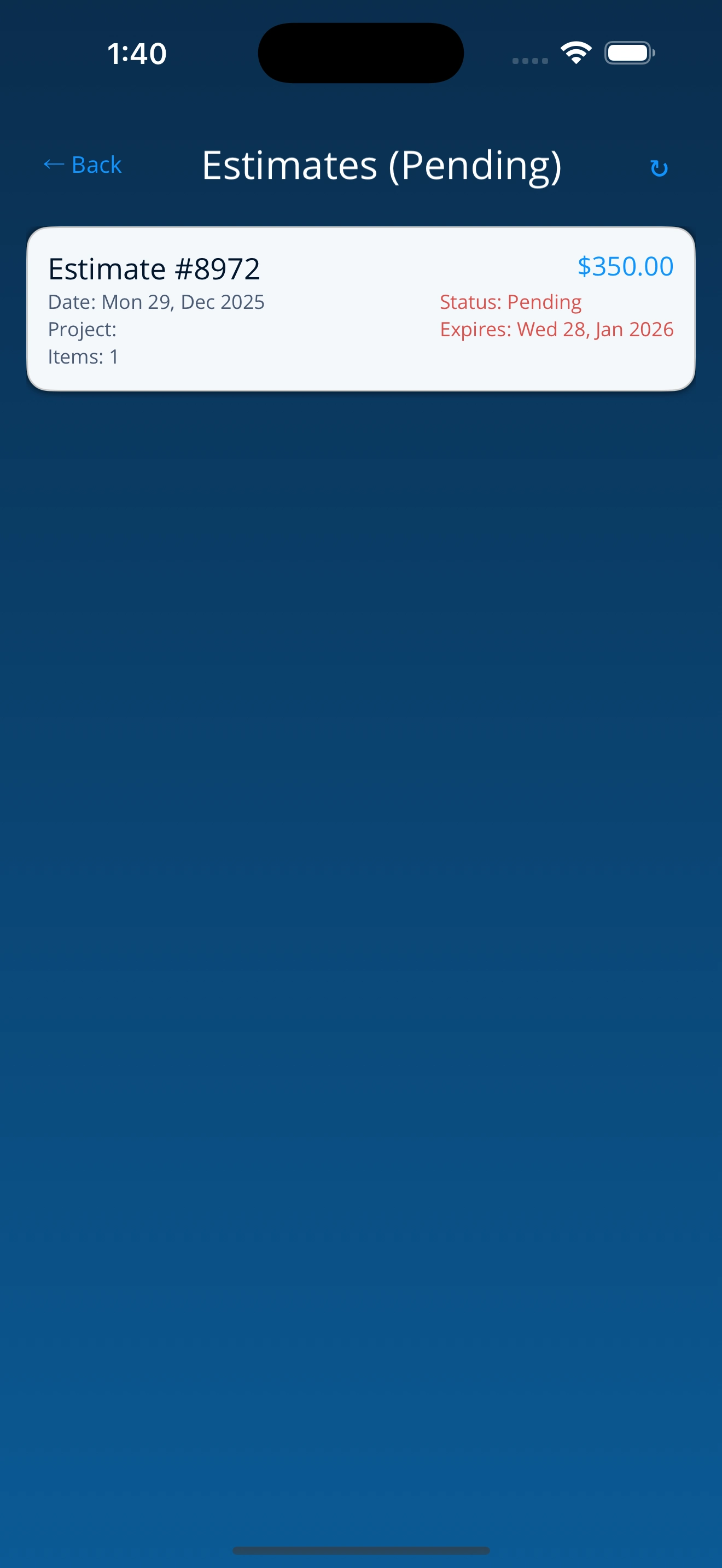
Review and approve pending service estimates for your property.
View all pending estimates awaiting your approval. **Selecting any estimate from the list will open its full details.**
Check the full breakdown of the service, costs, and terms.
Tap the action icon at the top to open the approval menu.
Select whether you want to approve or deny the estimate.
Enter your name to confirm who is approving or denying the request.
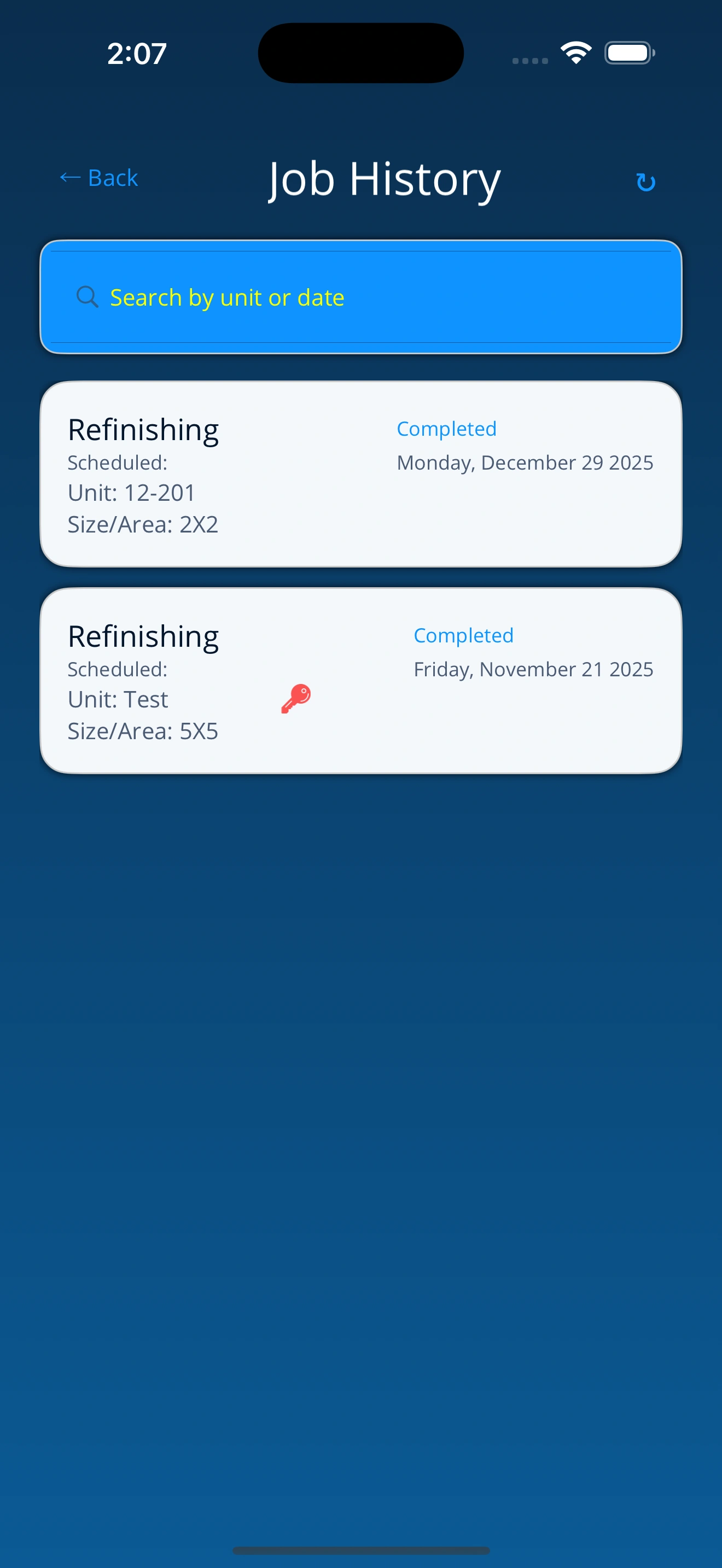
Access the complete record of services performed at your property.
Browse all completed jobs. **Selecting any job from the list will open its full details.**
Review specific service dates, work performed, and final reports.
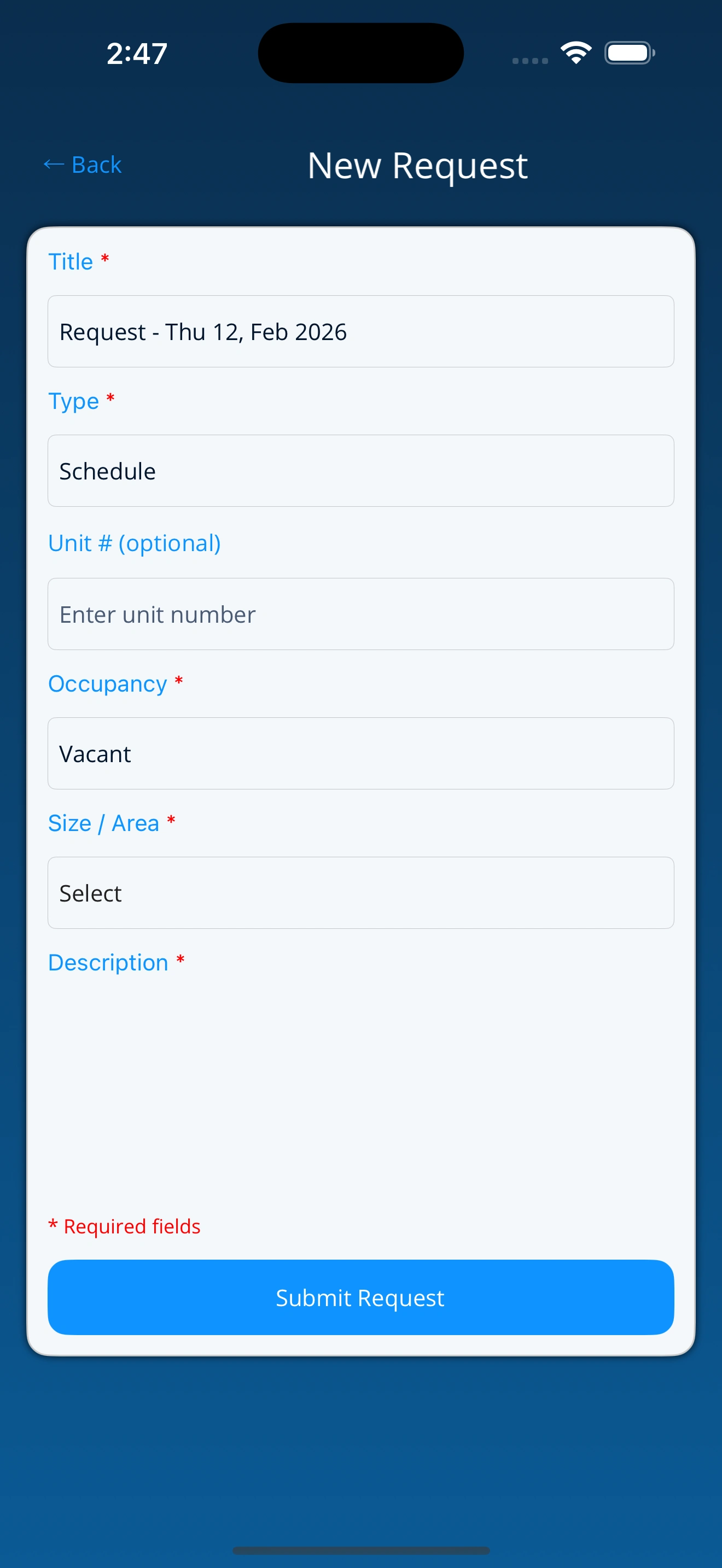
Access service requests, chats, and technical support instantly.
Request new services, estimates, or schedule appointments directly from the app.
Chat in real-time with our office team for any immediate needs or questions.
Read interesting news or important updates regarding your property. These are read-only messages.
Receive instant alerts on your phone whenever the office team sends a new message.
Report app problems or suggest new features you'd like to see in the future.